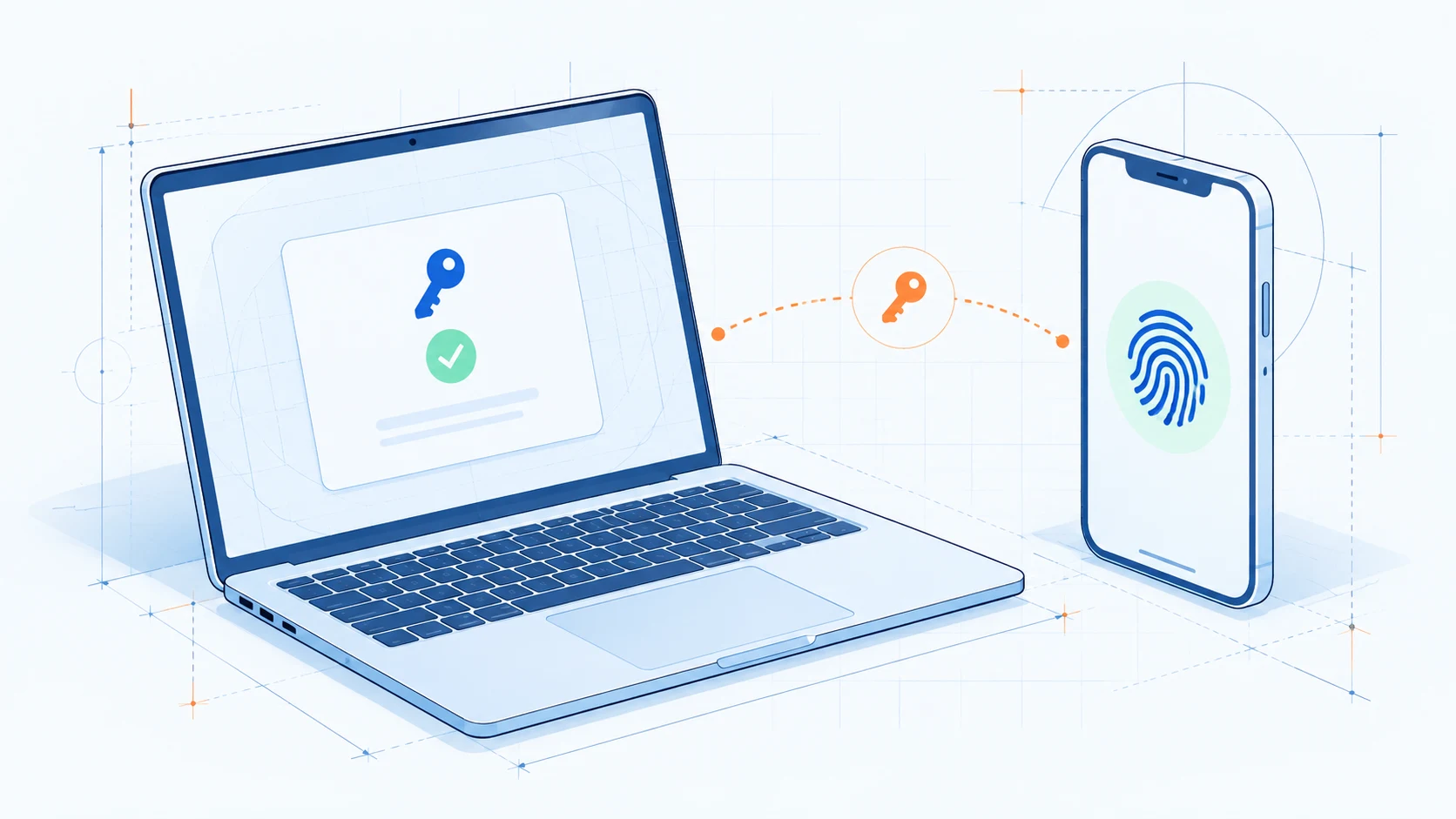
Passkeys, explained: the sign-in with nothing to steal
Imagine signing in with a glance or a fingertip instead of waiting on a texted code. This guide explains what a passkey is and walks you through setting one up, because that texted code is on its way out.
If you have ever stood in a parking lot waiting for a six digit code to arrive, you already know the problem with text message security. It is slow, it needs a signal, and it turns out it was never all that secure to begin with.
The replacement is called a passkey. Apple, Google, Microsoft, and a growing number of banks and retailers have all adopted it, and 2026 is the year it starts being the normal way to sign in. Here is what a passkey actually is, how to set one up in about two minutes, and what changes for Microsoft 365 accounts.
So what is a passkey?
A passkey is a sign-in that uses something you already do to unlock your phone or laptop: your face, your fingerprint, or your device PIN.
Under the hood, your device creates two matching halves of a digital key. One half stays locked on your device and never leaves it. The other half is handed to the website, and it is useless on its own. When you sign in, the two halves have a very quick conversation, and you are in.
Why passkeys beat the texted code
Text codes had a good run, but attackers caught up. A convincing fake login page can collect your password and your code in real time and use both before the code expires. Criminals also talk phone carriers into moving a phone number onto a SIM card they control, which quietly hands them every code you were about to receive.
A passkey shuts both of those down. It is tied to the real website, so a look alike page cannot complete the handshake, and there is no code in transit to intercept. That is why CISA, the federal cybersecurity agency, points to phishing resistant sign in as the strongest available defense against account takeover, and why NIST, the standards body, now classifies text and voice codes as a restricted method.
There is a happy side effect too: passkeys are simply easier. Microsoft found that 98% of passkey sign in attempts succeed, compared with about 32% for passwords. Fewer lockouts, fewer resets, fewer frantic calls at 8:55 on a Monday morning (though we will always pick up).
How to set one up
Most big accounts now have a passkey option tucked into their security settings, and the flow is nearly identical everywhere:
- Sign in as you normally would, then open Security or Sign-in methods in your account settings.
- Choose Add a passkey (sometimes listed as "Set up passwordless sign-in").
- Pick where it lives: this computer, your phone, or a small USB security key.
- Confirm with your face, fingerprint, or PIN.
- That’s it!
For a work Microsoft 365 account, the direct link is aka.ms/mysecurityinfo. Google, Apple, Amazon, and most major banks all have the same option waiting under Security.
One thing to know first: a passkey belongs to the device you created it on. Make one on your laptop and it signs you in on that laptop, not from your phone. That is not a limitation so much as the point, since the key never travels. You can create as many as you need, one per device, and most accounts let you add several.
We highly recommend setting up two passkeys, not one. Your laptop and your phone, for example. If a phone goes in a lake on vacation, the second one keeps you working while the replacement ships.
Heads up: Microsoft is retiring texted codes
If your company runs on Microsoft 365, this stops being optional soon. Microsoft is phasing out text and phone call codes for business sign-ins, and there is no opting out of the final date.
- September 1, 2026: passkeys become the default sign-in experience. Anyone still set up for text or voice codes gets passkeys switched on automatically and will be nudged to register one at the next sign-in. Text codes still work during this window, so nobody gets locked out.
- February 1, 2027: Microsoft stops sending text and voice codes entirely. Anyone whose only method is a texted code hits a prompt they cannot skip: register a passkey, or no access.
Already using Microsoft Authenticator? No problem
The good news is that the app is not going anywhere. Only text messages and phone calls are being retired. If you tap Approve on a notification from Microsoft Authenticator, enter a two digit number in your phone, or type in a rotating six digit code out of the app, that keeps working, and you will not hit the February lockout.
One thing worth knowing anyway:
- A phone number may still be sitting on your account as a backup. Plenty of people set up a text code years ago, moved to the app, and forgot the number was still there. If it is, you are still in scope for the automatic switch on and the friendly nudge to register a passkey. Nothing breaks, you will just be asked.
So there is no emergency if you are on the app. There is still a good reason to add a passkey when you get a spare two minutes, and you can keep the app as your backup.
The questions we get asked most
What if I lose my phone? Your passkeys are backed up to your Apple or Google account and reappear on the replacement once you sign in. If you registered a second passkey somewhere else then you can use that device to authenticate.
Does someone holding my phone get into everything? No. A passkey still needs your face, your fingerprint, or the device PIN.
Is my password going away? Not yet. For most accounts the password is still there in the background, you just stop reaching for it. Sites that offer a passkey almost always still let you sign in with your password too, at least for now, so you have both options while everyone gets used to it.
What about staff without a smartphone? A work laptop works on its own using Windows Hello, which is the name Microsoft gives the PIN or face sign-in you already use to unlock a Windows computer. If your team types a PIN or looks at the camera to get into their laptop, they can use the device to set up a passkey on it.
Where to start
Pick your most important account, probably work email, and add a passkey to it this week. Then add a second one on a different device. Fifteen minutes of setup removes the single most common way businesses get broken into.
If you would rather have someone handle the whole rollout, including the Microsoft deadline, the settings, and the heads up your staff needs before the prompt appears, head over to our Contact us page and get in touch. While you are here, take the Threat Test and see how well your team spots the fake login page that a passkey would have made harmless anyway.
 Guide
GuideAI Playbook, Part 1: Understanding AI and Its Real Business Uses
Start with AI Playbook Part 1: what AI is, where it helps a business, and how to think about it without the tech talk or the hype.
Read article → Company news
Our Biggest Security Upgrades of 2026: ClickFix Shield and More
Wireguided just released three security upgrades. A free interactive Threat Test customized to each person who takes it, free real-world security training, and ClickFix Shield, the first IT provider protection that blocks the attack, alerts the employee, and steers them straight to training.
Read article → Company news
Where did all the articles go?
Welcome to the new Wireguided website. Why we started the blog clean instead of importing years of outdated articles, and what to expect next.
Read article →